
Guide
How to write AI photo prompts: a simple structure to follow
Learning how to write AI photo prompts comes down to six short parts in a steady order. Name who stays the same, then the light, the clothes, the setting, the framing and the finish. Write each part as one concrete phrase, run the prompt, and change one part at a time. This guide explains each part, the words to avoid and a short generic example. Treat the structure as a starting point to adjust, not as a formula.
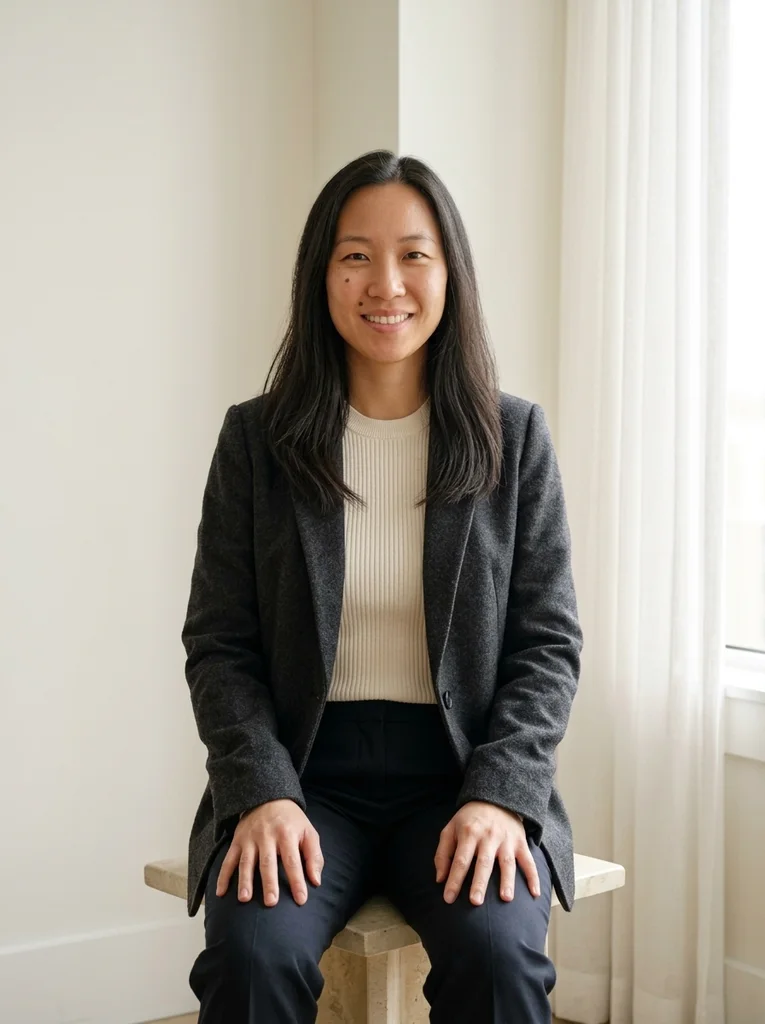
A photo editing prompt structure in six parts
A photo editing prompt starts from your own picture, so it must say what stays and what changes. Six short parts are enough for most portraits.
- Identity: your face, hair and skin tone stay as they are in your photo
- Light: where it comes from and how soft it is
- Wardrobe: what you wear, with fabric and color
- Setting: where you are, in a few plain words
- Framing: how much of you is in the picture and how you sit or stand
- Finish: skin texture, grain and overall color
Order the parts by importance
Start with identity, because it protects the thing you care about most. Put light second, since it sets the mood and shapes the face. Then add wardrobe, setting, framing and finish. Treat this order as a sensible default, not a rule, because tools read prompts differently.
Give each part one short phrase. Six concrete phrases are easier for the tool to follow than a paragraph of adjectives, which hides the instructions that matter. If you must cut something, cut the finish first and keep the identity line.
Choose concrete words and avoid vague ones
Concrete words describe something a camera could capture: soft window light from the left, a gray crew-neck sweater, a pale wall. Vague words such as beautiful, high quality or masterpiece describe nothing in particular, and tags such as 8K may add little.
Avoid wording that edits the face, such as flawless, airbrushed or younger. Avoid stacking genre names like cinematic, editorial and glamorous in one line, because they compete. Avoid naming real people as a reference, which can pull the face toward theirs. Lead with what you want, and add a short exclusion, such as no text or logos, only when something keeps appearing.
Read a short generic example
Here is an original example for a window-lit portrait in a gray sweater. It is generic and only shows the structure, so change every detail to match your own photo.
Join the six lines below into one paragraph when you paste them into your tool. The labels are for you, not for the tool.
- Identity: Keep the face, hair and skin tone from my attached photo unchanged.
- Light: Soft daylight from a large window on the left, with gentle shadow on the right side of the face.
- Wardrobe: A plain gray crew-neck sweater.
- Setting: A plain room with a pale wall.
- Framing: Chest-up, shoulders turned slightly, calm expression.
- Finish: Natural skin texture and fine grain.
Match the prompt to your source photo
Ask for changes your photo can support. A sharp, front-facing head-and-shoulders photo supports a chest-up portrait in new light. A dark, tilted selfie is a harder start for a bright studio look. If your source already has window light, keep that direction instead of inventing a new one.
Do not ask to change what you want to keep. If you already like your sweater, say that it stays. The fewer changes you request, the easier it is to keep your face.
Change one thing at a time
Run the prompt, then compare the result with your original. Change one part only, such as the light or the sweater, and run it again. If the result gets worse, go back to the previous version. Keep a short note of each version so you can return to the one that worked.
Tools read the same words differently, and one prompt can give a different image on each run. No prompt can promise a specific result. FrameGloss's own examples were made with Nano Banana 2, a Google Gemini image model, so wording that suits one tool may need adjusting in yours. Test in your own AI image tool and trust what you see.
FAQ
Common questions.
01How long should an AI photo prompt be?
Short enough that every phrase does a job. Six short phrases, one for each part, make a good starting length. Add detail only when a result misses something, and remove phrases that change nothing. Long paragraphs of adjectives tend to bury the instructions that matter. FrameGloss prompts are longer by design, because each spells out a complete look; use this structure for your own prompts or to change one part of ours.
02Should I tell the tool what not to do?
Lead with what you want in positive terms, such as natural skin texture. When something unwanted keeps appearing, add one short exclusion, such as no text or logos. Some tools offer a separate field for things to avoid, so check whether your AI image tool has one.
03Do I need to describe my face in the prompt?
No. Your reference photo carries your face, so describe what changes around it. One identity sentence that says the face, hair and skin tone stay the same is enough. Describing features in words can contradict the photo.
04Is a photo editing prompt different from a text-to-image prompt?
Yes. A text-to-image prompt describes a whole new picture, while an editing prompt starts from your photo and says what stays and what changes. Because the photo already defines the person, an editing prompt can be shorter.
05Do camera and lens terms help in a photo prompt?
They can hint at depth of field or perspective, but tools read them loosely. Plain phrases such as chest-up framing and softly blurred background are clearer. If you want to test a lens term, add one and compare the result.
Keep exploring.
A little inspiration.
On the house.
10 free photo prompts, with examples and instructions. A small edit for your next photo, ready for your own image tool.
No account or payment needed.
Get the library
Your next look
starts here.
$5.99 / month
New looks and refined prompts, added regularly.
Included while your subscription is active.
- 500+ ready-to-copy photo prompts
- 20 curated collections with before-and-after examples
- New looks & ongoing prompt improvements
- Save favorites & revisit your looks
Renews monthly at $5.99.
Cancel renewal anytime. Image-tool fees separate.