
Guide
What photo to use for an AI photo edit: a checklist
The best photo for an AI photo edit is sharp, evenly lit and shows only you, with your whole face visible. If you are deciding what photo to use for an AI photo edit, check focus, light, expression, framing and file quality before you add it to your AI image tool. A photo that misses one or two points can still work, and the last section shows how to improve it. Results vary by tool and photo, so treat the checklist as a way to start well, not as a promise.
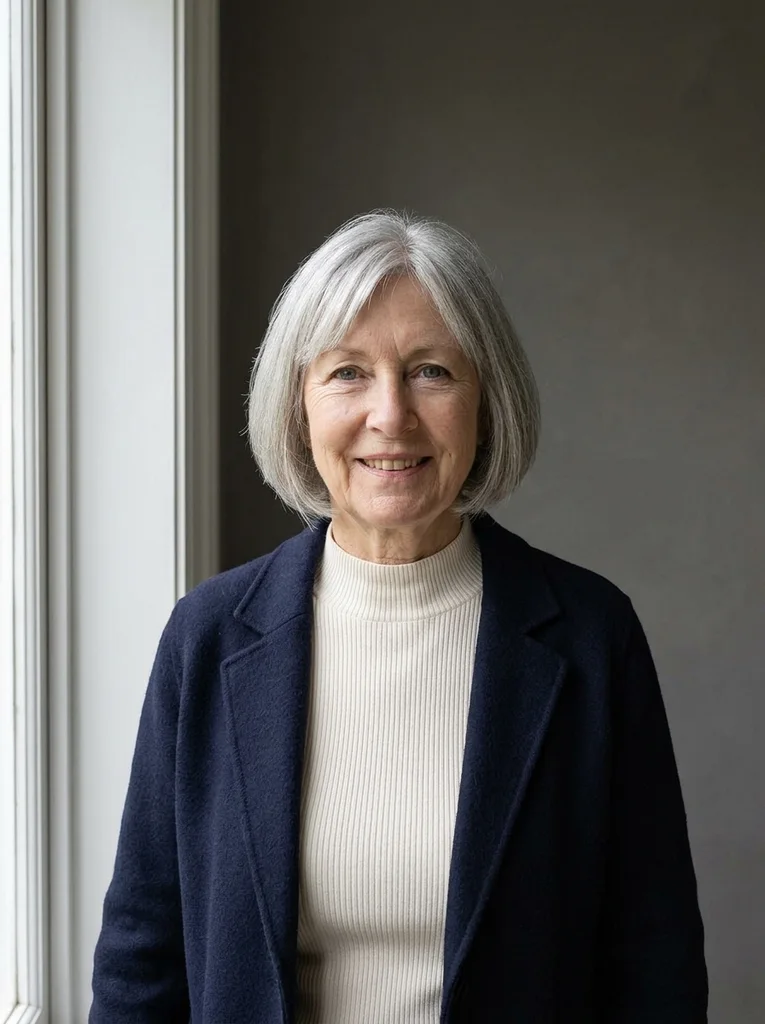
Start with a sharp photo and a fully visible face
Sharpness comes first, because a soft face gives the tool little to work from. Open the photo at full size and zoom in on your face. If your eyes, eyebrows and lips have clean edges, the photo is sharp enough. If they look smeared or soft, choose another picture.
Your whole face should be in view, from forehead to chin. Move hair away from your eyes. Avoid sunglasses, wide-brimmed hats, scarves over the mouth and hands touching the face. Regular glasses are fine when the frames and reflections do not cover your eyes.
Look for soft, even light or one clear direction
Soft daylight from a window, or open shade outdoors, is the safest choice. It shows your features evenly and gives the tool clean skin tones to work from. A single direction, such as a window to one side, also works, because it shapes the face with gentle shadow.
Avoid strong overhead sun that leaves dark shadows around the eyes, direct flash that bleaches the skin, and strongly colored light such as neon. Skip backlit photos too. When a bright window sits behind you, your face falls into shadow and the tool has little to read.
Pick the best selfie for an AI portrait
A selfie can work well when you take it with care. Hold the phone at eye level, not above or below, and keep it a little farther away than feels natural. A close wide-angle selfie exaggerates the nose and distorts the proportions of the face, and the tool may treat that distortion as your real face.
Use a timer or ask a friend if you can. Face the camera or turn only slightly, and choose a calm expression you would be happy to keep. Tools often carry over the expression from the source, so a relaxed look is easier to work with than a tense one.
Skip filters, beauty modes and extra people
Beauty modes and filters change your face before your AI image tool sees it. Smoothed skin, a slimmer jaw or larger eyes become part of the source, so the edit builds on a face that is not quite yours. Turn them off, or choose an unfiltered photo from your camera roll.
Choose a photo with one person in it. In a group photo the tool may pick the wrong face or blend features between people. If a group photo is your only good option, crop it to your face and check that the crop is still sharp.
Check resolution and framing first
Use the original file from your camera. Screenshots and copies saved from chat apps or social networks are often compressed. A photo from a recent phone camera is usually large enough. A small thumbnail is not.
For framing, head and shoulders, or head to waist, gives the tool enough to work with. Leave some room above your head and around your shoulders so nothing is cut off. A full-length photo taken from far away shows little detail of your face.
Improve a photo that is not ideal
Most real photos miss one or two points, so work with what you have. The quickest fix is a new photo. Stand facing a window in daylight, hold the phone steady at eye level, take several frames and pick the sharpest.
If you only have older photos, choose the sharpest one and crop away distractions. Brighten a dark photo a little, but do not smooth the skin or add a filter. If a good photo has sunglasses or a hat, look for another frame without them.
No photo can promise a match, because every tool responds differently. Compare the result with your original, and try a second source photo before you rewrite the prompt. Before you add it to your tool, run this quick check.
- Eyes, eyebrows and lips look sharp at full size
- Your whole face is visible and nothing covers it
- The light is soft and even, or comes from one side
- The camera is at eye level and your expression is calm
- No filter, beauty mode or other people in the frame
- It is the original file, not a screenshot
FAQ
Common questions.
01Can I use a selfie for an AI portrait?
Yes, when it is in focus and the light on your face is even. Hold the phone at eye level and a little farther away than feels natural, because a close wide-angle selfie distorts your features. A timer and a stable surface help avoid blur.
02Should I smile or keep a neutral face in the source photo?
Choose the expression you want to see in the result, because tools often keep the expression from your source photo. Either a soft smile or a calm face works. A relaxed look is easier to work with than a stiff or exaggerated one.
03Can I use a photo where I am wearing glasses?
Yes, if you normally wear them and the lenses show no strong glare over your eyes. Tilting your head slightly moves reflections out of the way. Sunglasses and heavily tinted lenses are a poor choice, because the tool cannot see your eyes.
04Is a full-body photo good enough for an AI photo edit?
It can work, but your face may be small in the frame and carry little detail. A closer, sharper photo, head and shoulders or waist-up, is the safer starting point, even when you want a wider framing in the final result. For seated looks that show hands, keep your hands in view.
05Is it fine to retouch a photo before uploading it?
Light corrections such as brightness or a small crop are fine. Skip skin smoothing, face reshaping and strong filters, because the tool treats those changes as part of your face. Keep the untouched original so you can compare the final result with it.
Keep exploring.
A little inspiration.
On the house.
10 free photo prompts, with examples and instructions. A small edit for your next photo, ready for your own image tool.
No account or payment needed.
Get the library
Your next look
starts here.
$5.99 / month
New looks and refined prompts, added regularly.
Included while your subscription is active.
- 500+ ready-to-copy photo prompts
- 20 curated collections with before-and-after examples
- New looks & ongoing prompt improvements
- Save favorites & revisit your looks
Renews monthly at $5.99.
Cancel renewal anytime. Image-tool fees separate.