
Guide
Keep your face the same with an AI photo prompt
To keep your face the same in an AI photo edit, start from a sharp, front-facing photo. Put one clear instruction about your face first in the prompt, and ask for as few other changes as you can. Faces drift when the source is soft, the angle is extreme or the style words pull hard. No tool can promise an identical result, so compare each output with your original.
Know why a face drifts from the original
Most AI image tools do not paste your face into a new picture. They redraw it from what they can see, and anything unclear in the source is filled in by guesswork. That is why the same photo and the same prompt can give two slightly different faces.
These are the usual causes of drift.
- A soft, small or compressed source with little facial detail
- An extreme angle, such as a strong tilt, a profile or a close wide-angle selfie
- Heavy style words that ask for a dramatic or glamorous look
- Strong stylization, such as painted, cartoon or heavily graded effects
- Many changes at once, such as new hair, new lighting and a new expression in one prompt
Start from a sharp, front-facing source
The source photo does most of the work. Choose one where you look toward the camera, the light is soft and even, and your eyes, nose and mouth are clear at full size. Avoid filters and beauty modes, because the tool treats their changes as your real face.
If you are still choosing, the guide on how to choose the best photo for an AI photo edit lists the checks in order. A second attempt with a better source often does more than a longer prompt.
Write a prompt that maintains the same face
Put the face instruction first and make it specific. Say that your face, hairline and skin tone must match the reference photo. Name only the things you want changed, such as the clothes or the background. Vague wording like "make it look like me" leaves the tool free to decide what that means.
A short example: "Keep my face, hairline and skin tone exactly as in the reference photo. Change only the clothing and the background." It names what stays and what changes, which leaves the tool less reason to change anything else.
Leave out words that edit the face itself, such as younger, slimmer, flawless or glowing. Each one asks the tool to alter your features, and the result may no longer look like you.
Keep style words few and change one thing at a time
Strong style words compete with the face instruction. Cinematic, glamorous, dramatic and painterly can all push the tool to redraw the face to fit the style. Describe light and clothing in plain terms instead, such as soft window light or a gray wool sweater.
Change one part of the prompt per attempt. If you swap the clothes, the background and the light together and the face drifts, you cannot tell which change caused it. Go back to the last version that held your face, then add one change.
Rerunning the same prompt can also help, because each run produces a slightly different image. Use it as a retry, not a fix. If several runs in a row drift, change the source photo or simplify the prompt.
Compare each result with your original
Place the result beside the source photo and check the features that rarely change. Compare eye shape and spacing, eyebrow line, nose width, lip shape, jawline and hairline. Then look for small marks such as freckles, moles or a scar, which tools often smooth away or move.
Check at two sizes. At full size you catch changed details. At thumbnail size you judge overall resemblance, which is how most people will see the photo. If a friend who knows you well hesitates to say it is you, treat the result as drifted.
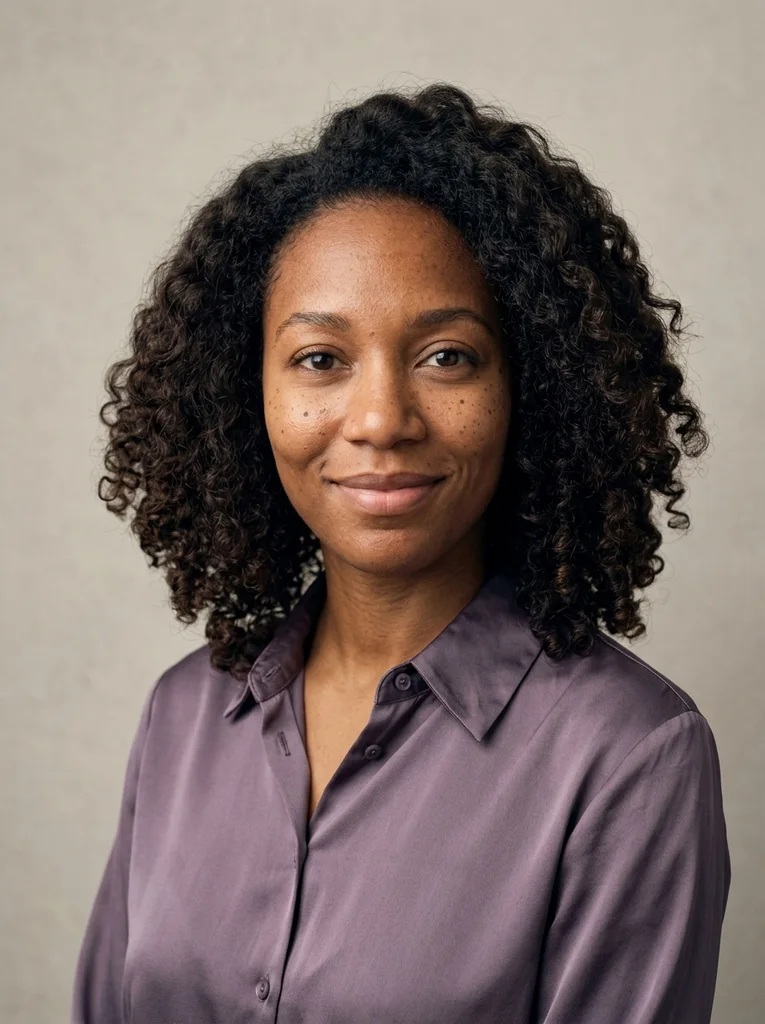
FrameGloss shows its examples beside the reference portrait they started from, and you can do the same with your own pair.
Accept what no tool can promise
No tool can promise an identical face, and results vary by tool, photo and run. Small shifts in proportion, skin texture or expression are common even with a good source. Keep the results where you recognize yourself and discard the rest.
If every attempt drifts, step back. Try a different source photo, shorten the prompt and remove style words one at a time. Never use an AI-edited photo where an unedited likeness is required, such as a passport or another ID document.
FAQ
Common questions.
01Why does my face look different in AI photo edits?
The tool redraws your face from the pixels it can see, so anything soft, small or unusual in the source is filled in by guesswork. Extreme angles, strong style words and many simultaneous changes make drift more likely. A sharp, front-facing photo lowers the risk.
02What should I write to keep my face the same?
Open the prompt with one clear sentence saying that your face, hair and skin tone must match the reference photo and that only what you name may change. Then describe clothes, light and setting in plain words, without terms that alter the face.
03Does a longer prompt keep the face more accurately?
Not usually. Length does not add accuracy, and long lists of style words can bury the face instruction. Keep the identity sentence first, add only the details you need, and test one change at a time.
04Can I get exactly the same face every time?
No. Even with the same photo and prompt, each run can differ slightly, and different tools redraw faces in different ways. Aim for a result you recognize as yourself, and discard the attempts that drift.
05Should I upload more than one photo of my face?
Only if your AI image tool accepts several images. A second sharp, front-facing photo in similar light can give the tool more to read. Photos that differ a lot may pull the result in different directions. Compare it with a single-photo attempt.
Keep exploring.
A little inspiration.
On the house.
10 free photo prompts, with examples and instructions. A small edit for your next photo, ready for your own image tool.
No account or payment needed.
Get the library
Your next look
starts here.
$5.99 / month
New looks and refined prompts, added regularly.
Included while your subscription is active.
- 500+ ready-to-copy photo prompts
- 20 curated collections with before-and-after examples
- New looks & ongoing prompt improvements
- Save favorites & revisit your looks
Renews monthly at $5.99.
Cancel renewal anytime. Image-tool fees separate.