
Guide
Fix common AI photo edit problems: plastic skin, changed clothes and more
Common AI photo edit problems usually have a clear cause and a short fix. If your AI photo looks plastic, ask for natural skin texture. If the AI changed your clothes, name the clothes you want to keep. For framing, hands and backgrounds, describe the result in plain words and change one thing per attempt. This guide covers six common problems, each with a cause and a fix. Outcomes differ between tools and photos, so expect to iterate.
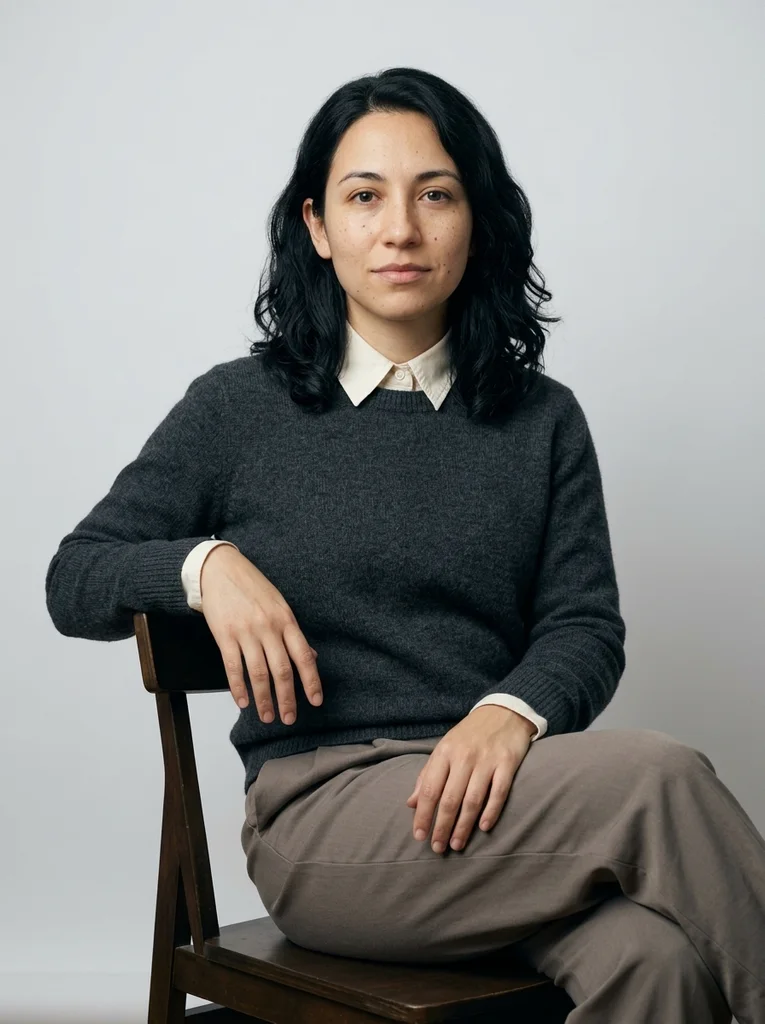
Fix an AI photo that looks plastic or waxy
Waxy skin has a few common causes. Some tools smooth skin on their own. A soft or filtered source photo leaves no real skin detail to keep. Smoothing words such as flawless, airbrushed or glowing ask for it, and very flat light hides the texture that is there.
Start with a sharp, unfiltered source. In the prompt, ask for natural skin texture, visible pores and fine lines, and soft light from one side that brings out texture. Delete retouching words. Then check the result at full size. In some tools a little smoothing may remain.
Fix it when the AI changed your clothes
If you did not mention clothing, the tool may keep it or choose its own. Style words can also imply an outfit: an elegant winter look may add a coat, and a cozy look may add a knit. Patterns, logos and small buttons are redrawn too, so they often change even when you meant to keep them.
Name what you are wearing and say it must stay as in the reference photo. Or describe the new outfit in detail: fabric, color and neckline. Plain, solid garments hold their shape better than prints or printed text. If a style word keeps changing the outfit, remove it and describe the light instead.
Correct framing that is too close or cuts off the head
The tool follows the framing that your words and your source suggest. Terms such as close-up or headshot ask for a tight crop. A source photo where your face fills the frame can lead to a tight crop with little room above your head. The output shape matters too, because a wide image leaves little space for a tall subject.
State the framing in words, such as head and shoulders with space above the head, or waist-up with the whole head in frame. Choose a portrait-shaped output if your tool offers a choice. Use a source photo with room around your head.
Fix odd or merged hands
Hands have many small parts that overlap, so they are easy to draw wrongly. Problems show up most when fingers cross, hold small objects or sit half hidden. Zoom in on every result. Extra or merged fingers and cuffs that swallow a wrist are the usual signs.
Ask for simple, visible hand positions, such as resting on a knee or lying flat on a table. Choose a chest-up framing if you do not need the hands at all. No wording can promise correct hands, so check each result and rerun until you get a clean one.
Clean up background artifacts
Busy backgrounds invite mistakes. Signs, bookshelves, window grilles, crowds and repeated patterns can come out as warped lines, melted objects or lettering that reads as nonsense. The outline of your hair and shoulders is another weak point.
Ask for a simple setting, such as a plain pale wall or a softly blurred street, and leave out anything with readable text. Zoom in on the edge of your hair, window frames and any straight lines. If one area is wrong, rerun with a simpler setting or crop it out.
Bring back a face that has changed
A face drifts when the source is soft or small, the angle is extreme, or strong style words push the tool to redraw it. The full method is in the guide How to Keep Your Face the Same in AI Photo Edits, and the short version follows.
Start from a sharp, front-facing photo and move the face instruction to the start of the prompt. Remove style words that alter how the face looks. Compare each result with your original and alter a single thing per attempt. Even then, an identical face is not something any tool promises.
FAQ
Common questions.
01Can I fix a bad result without starting over?
Sometimes. If your tool accepts follow-up instructions, ask it to change one thing, such as the skin texture or the framing, and keep everything else. If the result keeps getting worse, go back to the source photo and rewrite the prompt.
02How many times should I rerun a prompt before changing it?
There is no fixed number. When results differ from one attempt to the next, chance may be the cause, so rerun. When the same problem appears several times in a row, change the prompt or the source photo instead.
03Should I add more words to fix a problem?
Usually the opposite. A long prompt can hold conflicting instructions. First remove the words that probably caused the problem, such as retouching terms, then add one clear instruction that says what you want instead.
04Can I fix small flaws in a regular photo editor?
Yes. A background glitch, a stray mark or an odd edge can often be fixed with a basic editor's crop or healing tools. Leave the face alone, though: if it looks wrong, rerun from your source photo, because heavy manual retouching adds its own smoothing.
05Why does my AI photo still look plastic after I removed the smoothing words?
The source may be the cause. A soft, filtered or low-resolution photo has little real skin detail to keep. Try a sharper, unfiltered photo and ask for visible pores and fine lines. Some tools smooth skin more than others, so a little softness may remain.
Keep exploring.
A little inspiration.
On the house.
10 free photo prompts, with examples and instructions. A small edit for your next photo, ready for your own image tool.
No account or payment needed.
Get the library
Your next look
starts here.
$5.99 / month
New looks and refined prompts, added regularly.
Included while your subscription is active.
- 500+ ready-to-copy photo prompts
- 20 curated collections with before-and-after examples
- New looks & ongoing prompt improvements
- Save favorites & revisit your looks
Renews monthly at $5.99.
Cancel renewal anytime. Image-tool fees separate.